

Business hours
Business hours control when your AI agent makes outbound calls. By default, PeakSend follows TCPA-compliant calling windows based on the contact’s timezone. When you set custom business hours, calls are restricted to the schedule you define, based on your team’s timezone instead.
Default behavior
Section titled “Default behavior”With no custom hours configured, the agent can make outbound calls during TCPA-allowed hours, which is 8am–9pm (or 8am–8pm in some states) in the contact’s timezone. No configuration needed.
See TCPA compliance for details on how these windows are determined.
When to set custom business hours
Section titled “When to set custom business hours”Custom business hours are most useful when your agent does live transfers. Setting hours that match your team’s availability means leads only get called when someone can actually pick up the transfer.
If your agent books appointments on a calendar, custom hours are usually unnecessary. Nobody needs to answer the phone during the call, so the default TCPA windows give the agent the widest calling window possible.
More calling hours means a higher chance of reaching leads at the right time. If your team can take calls outside a standard 9–5, it’s worth expanding your hours.
How to configure
Section titled “How to configure”- Open the script editor for your agent.
- Click Customize Calling Hours at the bottom of the right-hand column to open the calling hours modal.
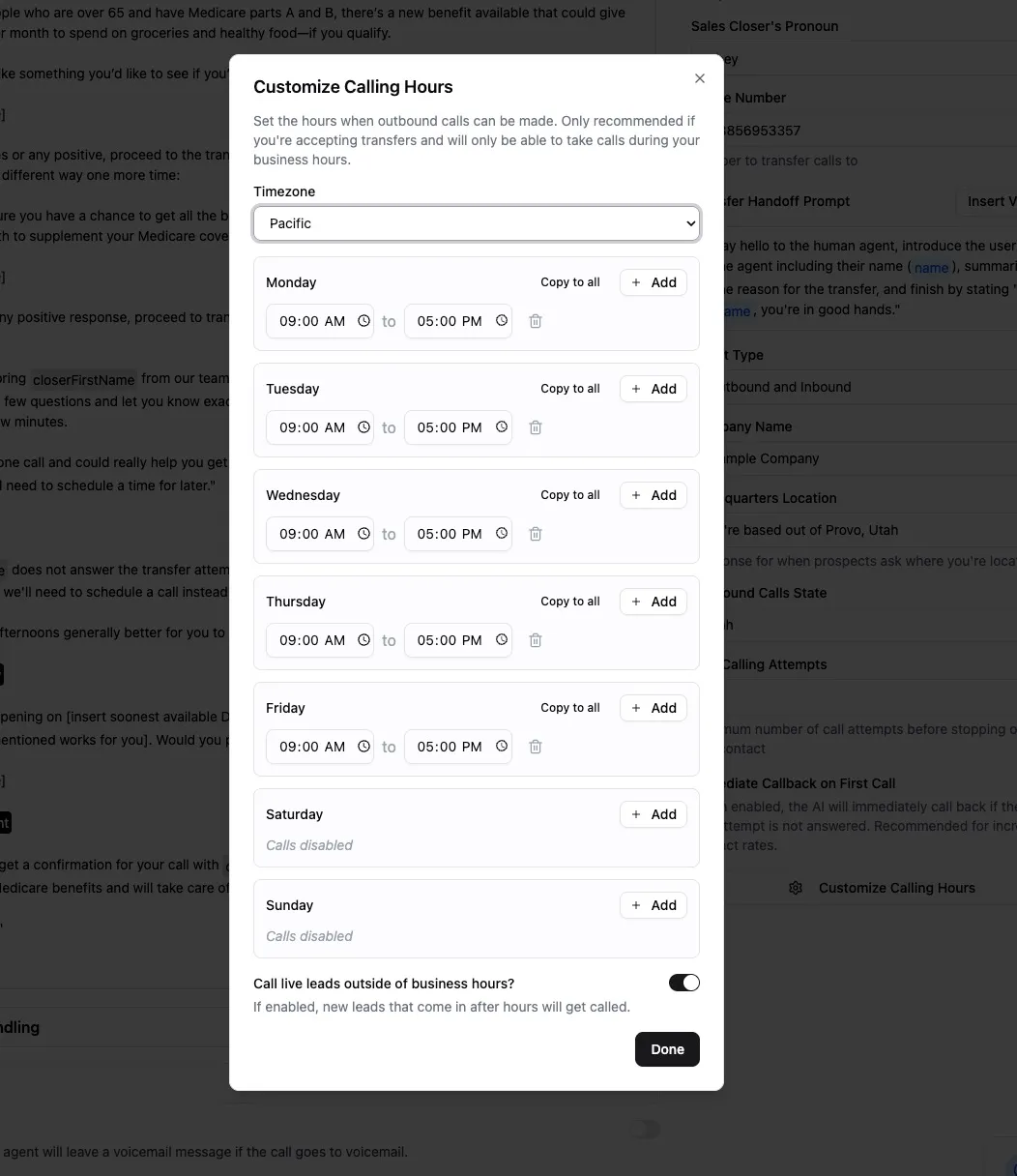
- Select your team’s timezone from the list of supported options. Business hours use your team’s timezone, not the contact’s. If your hours are 9:00am-5:00pm and you select Pacific, calls will only go out 9:00am-5:00pm Pacific time, even if your lead is in Eastern time.
- Add time ranges for each day. The first time you click Add on a weekday, all five weekdays auto-fill with 9:00 AM–5:00 PM.
- To apply one day’s schedule across the whole week, click Copy to all on that day.
- You can add multiple ranges to the same day for split availability (for example, 9:00 AM–12:00 PM and 2:00 PM–6:00 PM).
- Days with no ranges show “Calls disabled,” and the agent won’t make outbound calls on those days.
Changes save automatically.
To go back to the default TCPA windows, delete all time ranges from every day.
Calling live leads after hours
Section titled “Calling live leads after hours”When custom business hours are configured, a toggle appears: “Call live leads outside of business hours?”
Turning this on means new leads that come in after hours get called right away instead of waiting for the next business hours window. You get a higher contact rate, but calls may come in when your team isn’t around for a transfer. If you have backup appointment booking setup, it’s recommended to keep this enabled to ensure you have the fastest lead response time possible.
How business hours interact with TCPA windows
Section titled “How business hours interact with TCPA windows”Custom business hours and TCPA compliance windows are enforced independently. Both need to be satisfied for a call to go out.
Say your business hours are set to 7:00 AM–7:00 PM Eastern, but the contact is in a state where calls aren’t allowed until 8:00 AM in their local time. The agent waits until 8:00 AM in the contact’s timezone before dialing, even though your business hours have already started.