

Build an AI sales agent in 5 minutes
In this tutorial, you’ll create an outbound AI sales agent that live-transfers warm leads to your closer, with calendar booking as a backup when your team can’t answer. By the end, you’ll receive a test call on your own phone.
The example uses a fictional medicare agency called SeniorCare Solutions. Replace the details with your own business as you follow along.
Build your agent
Section titled “Build your agent”Go to peaksendai.com/portal/auth/start. You’ll land on the Get Started page with a setup form to build your first agent. Work through the onboarding form to give PeakSend the information it needs to generate your AI sales agent.
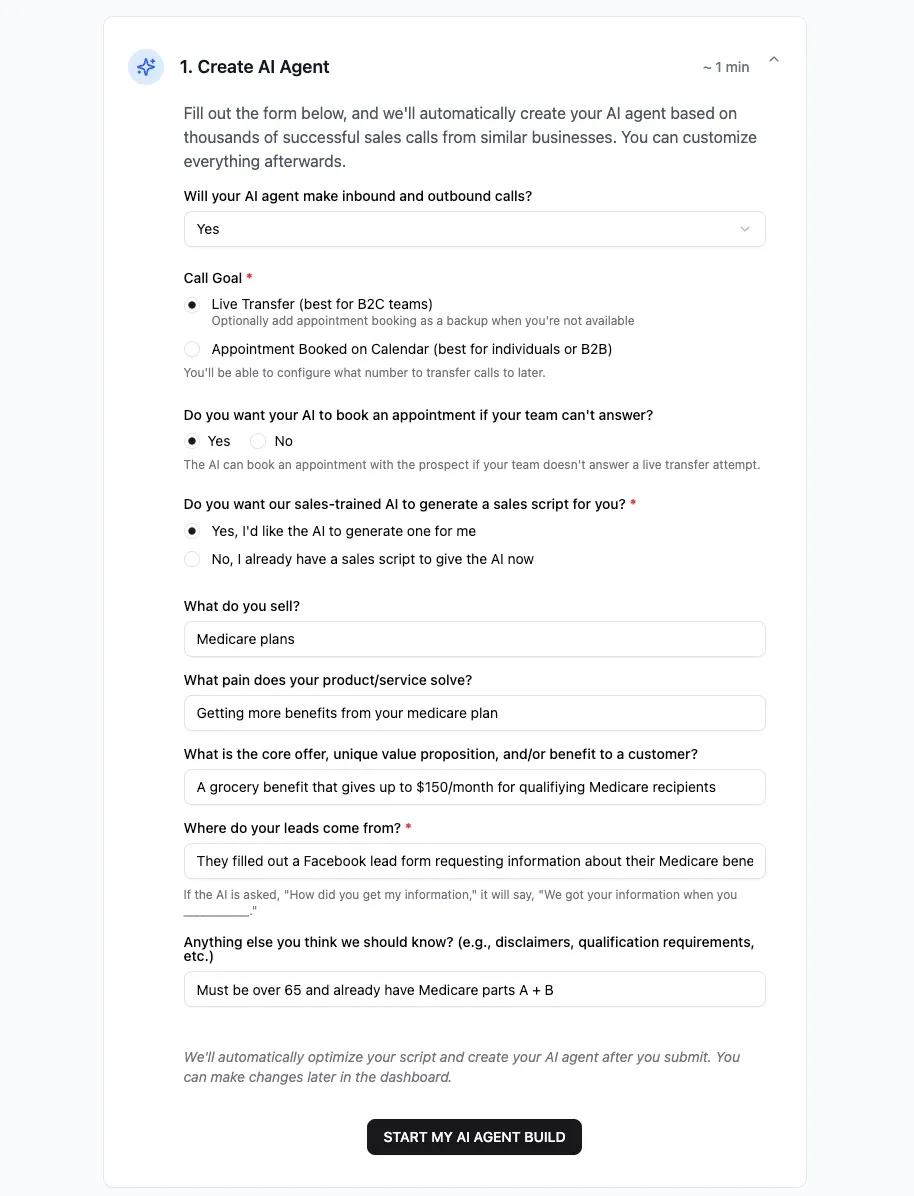
1. Choose inbound and outbound calls
Section titled “1. Choose inbound and outbound calls”For “Will your AI agent make inbound and outbound calls?”, select Yes. This means your agent can both dial out to leads and handle callbacks from prospects who missed the initial call.
If you only need to handle incoming calls (for example, from a marketing campaign with an inbound call CTA), select “No, it will only take inbound calls.”
2. Set your call goal
Section titled “2. Set your call goal”Select Live Transfer under Call Goal. This works well for B2C sales teams: the AI warms up the lead, then connects them directly to your closer on the line. For best results, you can configure business hours so that the AI only calls leads when your team is available to take transfers.
The other option, Appointment Booked on Calendar, has the AI book a time on your calendar instead of transferring. This is a better fit for B2B sales or solo closers, but can have lower performance due to the risk of no-shows.
3. Enable appointment backup
Section titled “3. Enable appointment backup”When asked “Do you want your AI to book an appointment if your team can’t answer?”, select Yes.
With this enabled, the AI first attempts a live transfer. If your closer doesn’t pick up, it books an appointment with the prospect so you don’t lose the lead.
4. Generate your script
Section titled “4. Generate your script”Select “Yes, I’d like the AI to generate one for me.”
Fill in the three script fields. Here’s what the SeniorCare Solutions example looks like:
- What do you sell? Medicare plans
- What pain does your product/service solve? Getting more benefits from your medicare plan
- What is the core offer, unique value proposition, and/or benefit to a customer? A grocery benefit that gives up to $150/month for qualifiying Medicare recipients
A specific, concrete offer in the hook (like the grocery benefit amount) tends to keep prospects on the line longer than a generic pitch.
5. Set your lead source
Section titled “5. Set your lead source”For “Where do your leads come from?”, describe how prospects opted in. For example:
They filled out a Facebook lead form requesting information about their Medicare benefits
If a prospect asks “How did you get my number?”, the AI responds with your answer. This is also a good reminder to only call leads who have given prior consent. Learn more about TCPA compliance.
6. Add any additional context (optional)
Section titled “6. Add any additional context (optional)”Use the “Anything else you think we should know?” field for disclaimers, qualification requirements, or anything else the AI should be aware of during calls.
7. Start the build
Section titled “7. Start the build”Click “Start my AI agent build.” PeakSend generates and optimizes your script. This may take up to a minute.
Configure and publish your agent
Section titled “Configure and publish your agent”Once the build finishes, click “Configure AI Agent” on the get-started page. This opens the script editor.
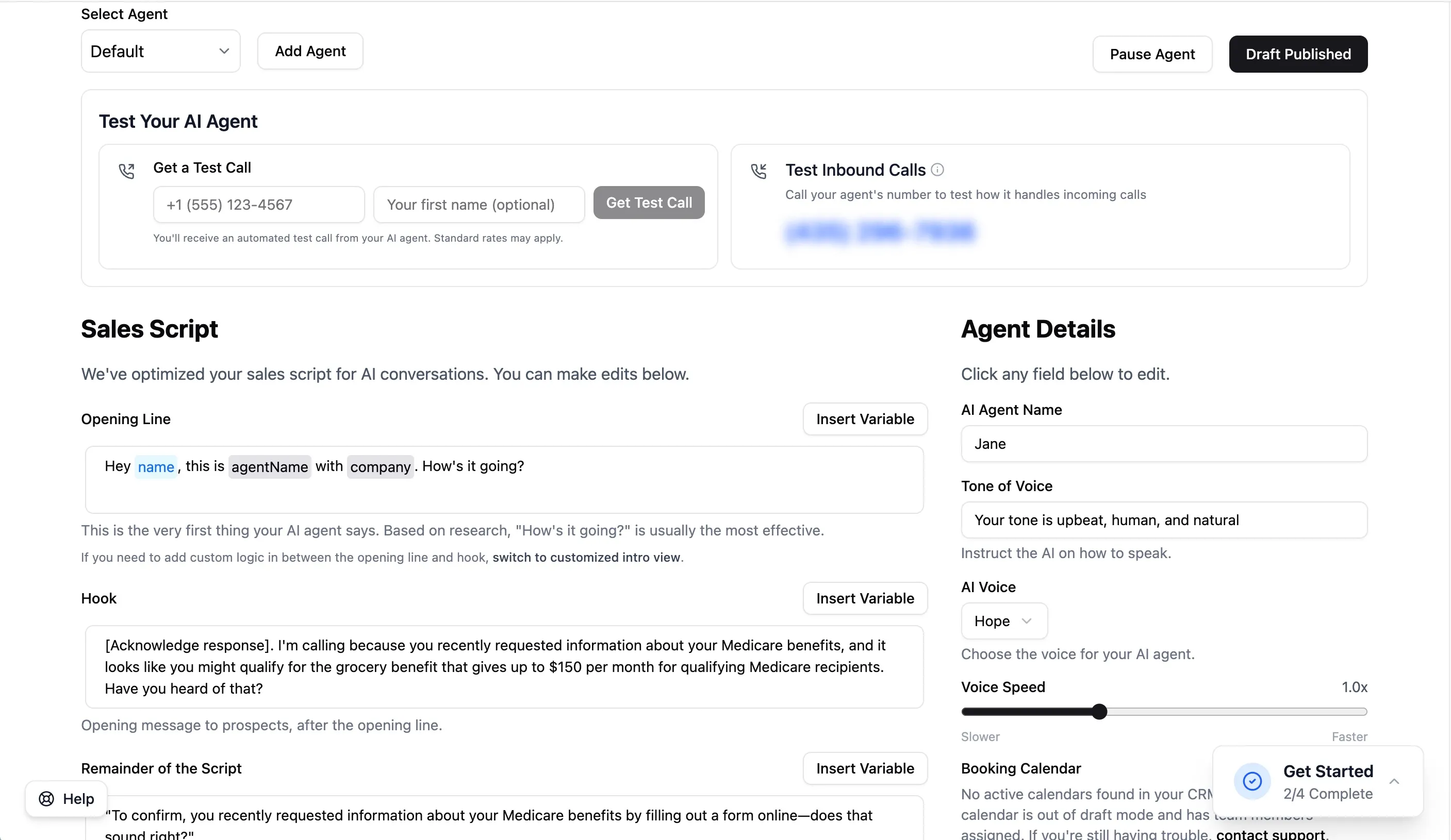
The script editor has two sections:
- Left side — your generated sales script, broken into Opening Line, Hook, and Remainder of the Script
- Right side — Agent Details like the agent’s name, voice, and closer information
Update your agent details
Section titled “Update your agent details”In the Agent Details panel on the right, fill in the fields that were skipped during the quick setup:
- Sales Closer’s Name — the name or title of the person who closes the deal (e.g., “James” or “Senior Benefits Advisor”). The AI uses this in the script, like “James will take great care of you!”
- Sales Closer’s Pronoun — select He, She, or They so the AI refers to the closer correctly
- Phone Number — the number to transfer live calls to
- Company Name — fill in your actual company name (e.g. “SeniorCare Solutions”)
- Headquarters Location — where your business is based. Prospects sometimes ask, and the AI responds with “We’re based out of __.”
Review your script
Section titled “Review your script”On the left side, read through the generated script. Click into any text box to edit the wording. The AI has optimized the script for phone conversations, but you know your product and audience best.
Publish
Section titled “Publish”Click Publish Draft at the bottom of the script section to save and apply your changes.
Make a test call
Section titled “Make a test call”At the top of the script editor page, find the “Test your AI agent” section:
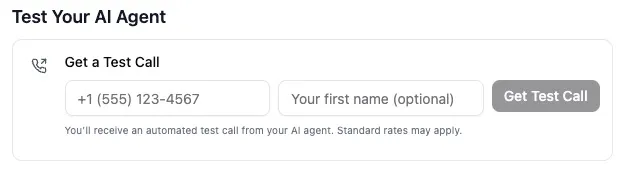
- Enter your name and phone number.
- Click to request a test call.
PeakSend calls you as though you’re a lead. Play along and go through the full pitch from the prospect’s side: the opening line, the hook, objection handling, and the live transfer attempt to the closer number you entered.
Next steps
Section titled “Next steps”- Refine your script — After the test call, go back to the script editor and adjust any wording that didn’t land well. Additionally, you can add responses to common objections and FAQ based on what you’ve heard in past calls.
- Get more test minutes — Cick “Fuel your AI agent” at the top of the page to purchase additional minutes for further testing.
- Connect your CRM — Integrate your calendar so the AI can book appointments directly into your scheduling tool.
- Launch your first campaign — Set up an outbound campaign to start calling real leads.