

CRM tags
PeakSend uses CRM tags in two ways: you tag contacts to tell PeakSend what to do with them, and PeakSend tags contacts back to record what happened on a call.
Tags you configure
Section titled “Tags you configure”Add these tags to contacts in your CRM to enroll them and route them to the right agent.
ai call list
Section titled “ai call list”A contact needs this tag to get on the call queue. Contacts without this tag will not receive calls.
PeakSend removes this tag automatically when a contact leaves the call list (after a conversion, a do-not-call request, disqualification, or hitting max attempts). To re-enroll someone, add the tag again. Note that this will reset their call cadence progress.
Removing this tag yourself in your CRM also works. PeakSend picks up the change and pulls the contact off the list.
agent 1 through agent 4
Section titled “agent 1 through agent 4”These route a contact to a specific agent. The number matches the agent’s position in your agent list: your first agent is agent 1, second is agent 2, and so on.
- If there’s no agent tag set, PeakSend defaults to agent 1.
- Only use one agent tag per contact. If a contact has multiple, PeakSend uses the first match.
Use these when you have multiple agents handling different lead types or campaigns.
Tags PeakSend applies
Section titled “Tags PeakSend applies”PeakSend writes these tags to contact records in your CRM after calls. You don’t need to create them ahead of time. You can use these tags to create internal workflows or filtered lists (e.g. sending yourself a notification when someone books an appointment).
ai appointment booked
Section titled “ai appointment booked”The call converted: the AI agent booked an appointment or completed a transfer goal. The contact is removed from the call list.
not interested
Section titled “not interested”The contact asked to be put on the do-not-call list during the call. PeakSend marks them as DNC in your CRM and removes them from the call list.
user disqualified
Section titled “user disqualified”The AI agent determined the contact doesn’t meet qualification criteria. The contact is removed from the call list.
ai transfer success
Section titled “ai transfer success”A live transfer was attempted and the receiving party picked up.
ai transfer failed
Section titled “ai transfer failed”A live transfer was attempted but didn’t connect (the receiving party didn’t answer or the transfer failed).
invalid_number
Section titled “invalid_number”The dialed number isn’t valid. The contact is removed from the call list.
dial_failed
Section titled “dial_failed”The call couldn’t connect (busy signal, spam detection, or similar). If a contact racks up too many dial failures across attempts, PeakSend removes them from the call list.
Tags in your CRM
Section titled “Tags in your CRM”PeakSend stores tags differently depending on your CRM. The necessary fields and tag definitions are created automatically during setup.
GoHighLevel
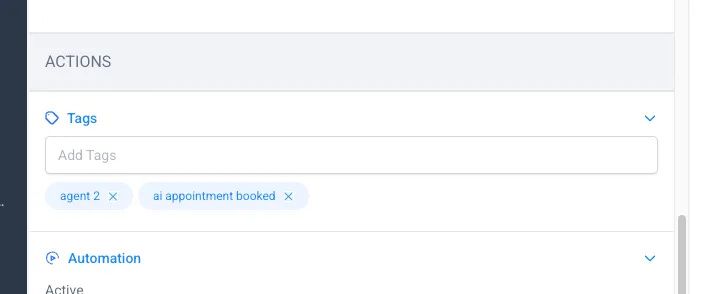
Section titled “GoHighLevel”Tags are native GHL contact tags. You can see and manage them on the contact record.
Salesforce
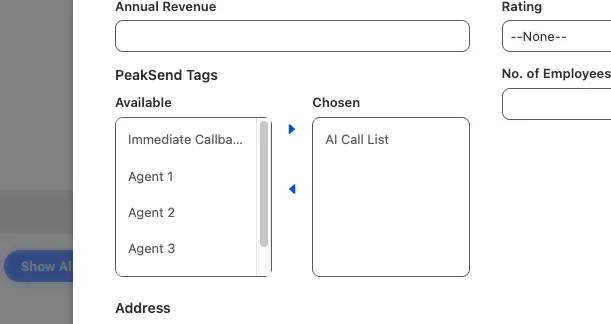
Section titled “Salesforce”Tags live in a custom multi-select picklist field called PeakSend_Tags on Lead and Contact objects. PeakSend creates this field and adds it to your page layouts when you connect your Salesforce org. You may need to switch to an “edit” view to see applied tags.
HubSpot
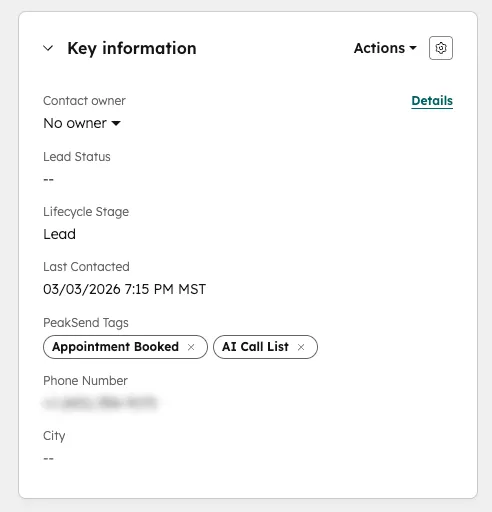
Section titled “HubSpot”Tags live in a custom contact property called peaksend_tags (labeled “PeakSend Tags” in the UI). PeakSend creates this property when you connect your HubSpot portal.
Other CRMs
Section titled “Other CRMs”For tag support in other CRM integrations, contact PeakSend support.